
Admin users can assign custom permissions to users by setting the fields they are allowed to modify. For example the GL code, line items or supplier name.
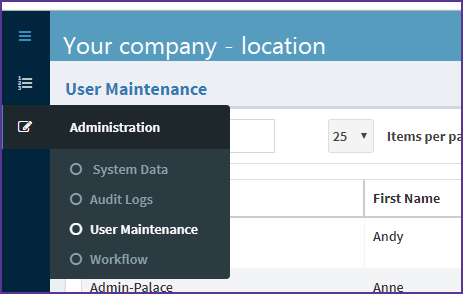
Step 1 - From Administration, select User Maintenance . The Administration section is on the top left of the screen:
Step 2 - Locate the user that you want to edit – you can use the search to look for a user (instructions here).
Step 3 - Once you have found the user that you wish to edit, select that user and choose the ‘Modify’ option from the Command column
Step 4 - Click the Custom Permission in the Update User window that pops up.
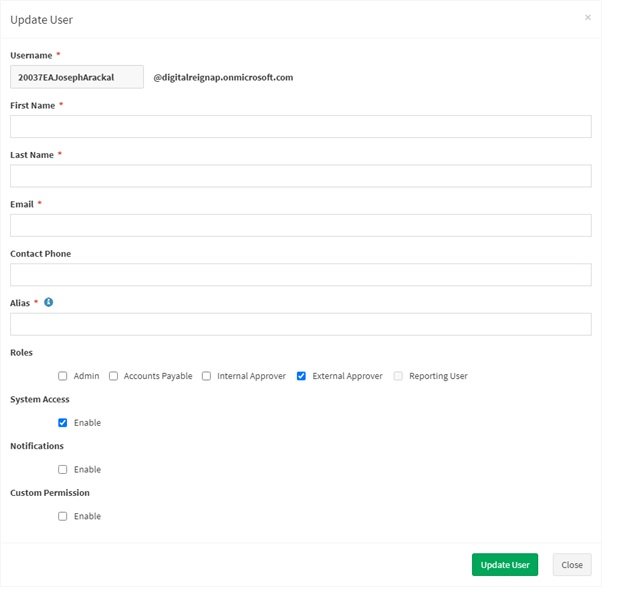
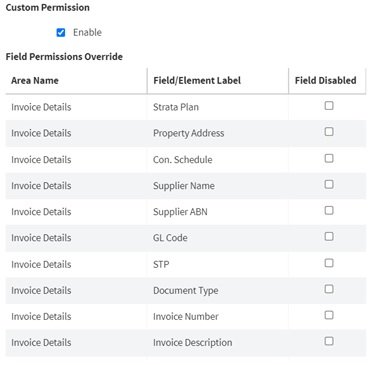
Step 5 - On the custom permissions screen, select/unselect the checkboxes next to fields on the invoice to enable/disable the field’s editing permission.
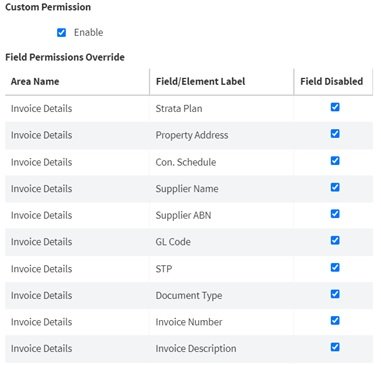
Note: For External Approvers, all the checkboxes will be ticked initially so they are not able to edit any fields.
Step 6 - Select Update user when you are ready.
Comments
0 comments
Article is closed for comments.